
Use ShiftDispatch to check your shifts, stay in touch with your team, and find
what you need for work. Complete setup, then make checking the app part of your
daily routine.
Install the app and enable notifications
Install ShiftDispatch from your phone's browser so you can open it from your
home screen. Allow notifications to receive shift updates, reminders, and work
message alerts.
If you skipped setup, open your account menu and select Finish mobile setup.
Set up ShiftDispatch on iPhone or Android.
Review and confirm your shifts
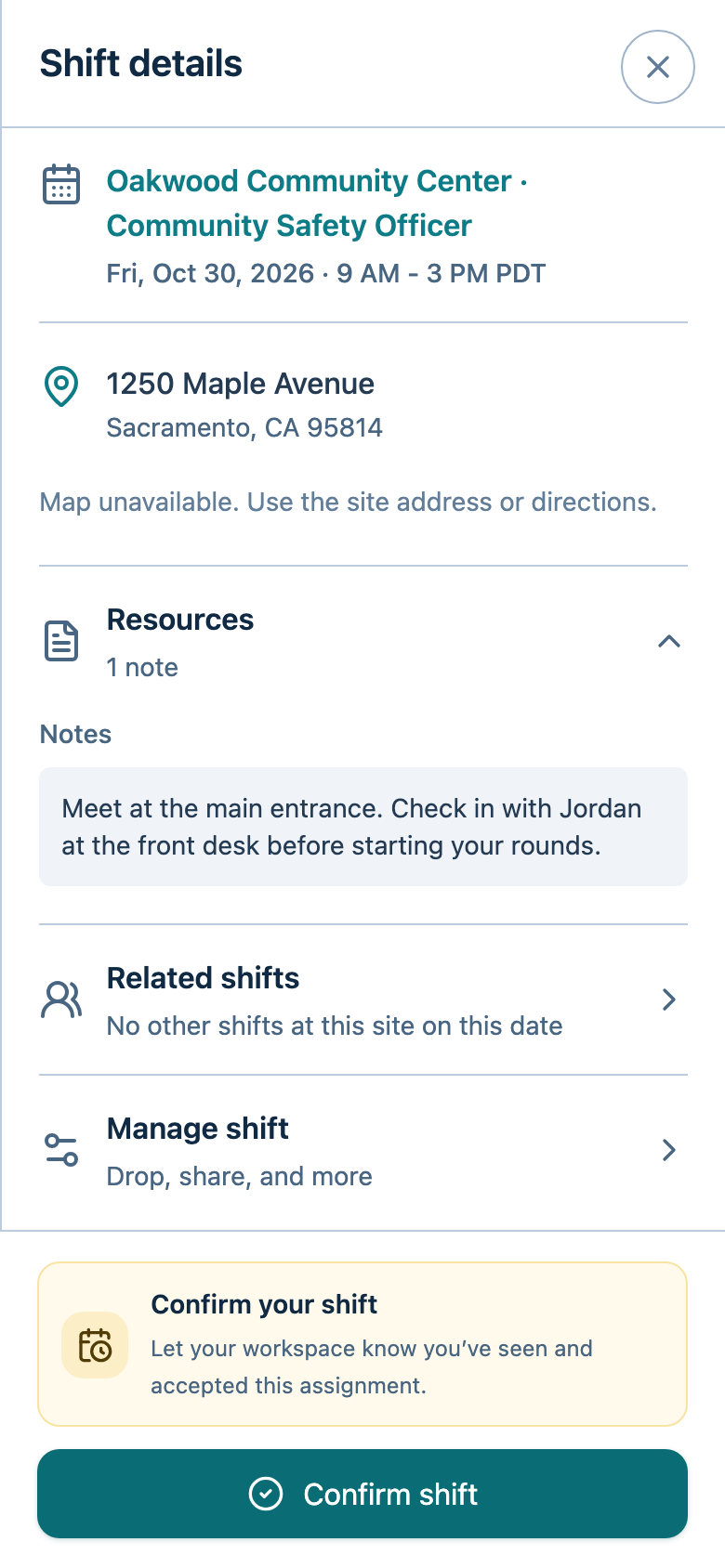
Open Shifts and review your assigned shifts under My shifts. Open a
shift to check its time, location, and instructions, then confirm that you
will attend.
Learn how to review and confirm shifts.
Pick up an open shift
Use Open shifts to find additional work. Review the details before selecting
Claim shift to add it to your schedule. Choose a shift with an available
space that does not conflict with your other assigned shifts.
Learn how to pick up an open shift.
Drop a shift you cannot work
Drop shift removes you from an assigned shift and makes the space available
for others to claim. Drop it before the cutoff shown in the app. Until the drop
succeeds, you remain assigned.
Keep work messages in the app
Open Chat to read and respond to work messages. Follow your manager's
expectations for work communication and check messages before your shift.
Learn how to use work messages.
Check in and out
Check in when starting your shift and check out when finishing. Allow location access when requested and wait for the app
to confirm each action saved.
Learn how to check in and out.
Review work documents
Open Documents from your account menu to view workspace PDFs. Files attached
to a specific shift are available in that shift's details.
Learn how to view and download documents.
Sync your personal calendar
Use Sync to calendar in your account menu to subscribe to your published
assigned shifts in Google Calendar, Outlook, or Apple Calendar. Calendar updates
can be delayed; check ShiftDispatch for last-minute changes.
Learn how to connect your personal calendar.
Build a daily routine
- Before work: Check your shift details, messages, and relevant documents.
- When starting: Check in and confirm it saved.
- When finishing: Check out and confirm it saved.
Troubleshooting
- You cannot sign in: Follow sign-in code troubleshooting.
- Notifications are missing: Follow notification troubleshooting.