
Claim an available open shift to add it to your assigned schedule. Review the
time, location, and instructions before committing to work it.
Before you start
Sign in and choose the team you want to work with.
Pick up a shift
- Open Shifts.
- Select Open shifts.
- Use the date controls to find the period you want to work.
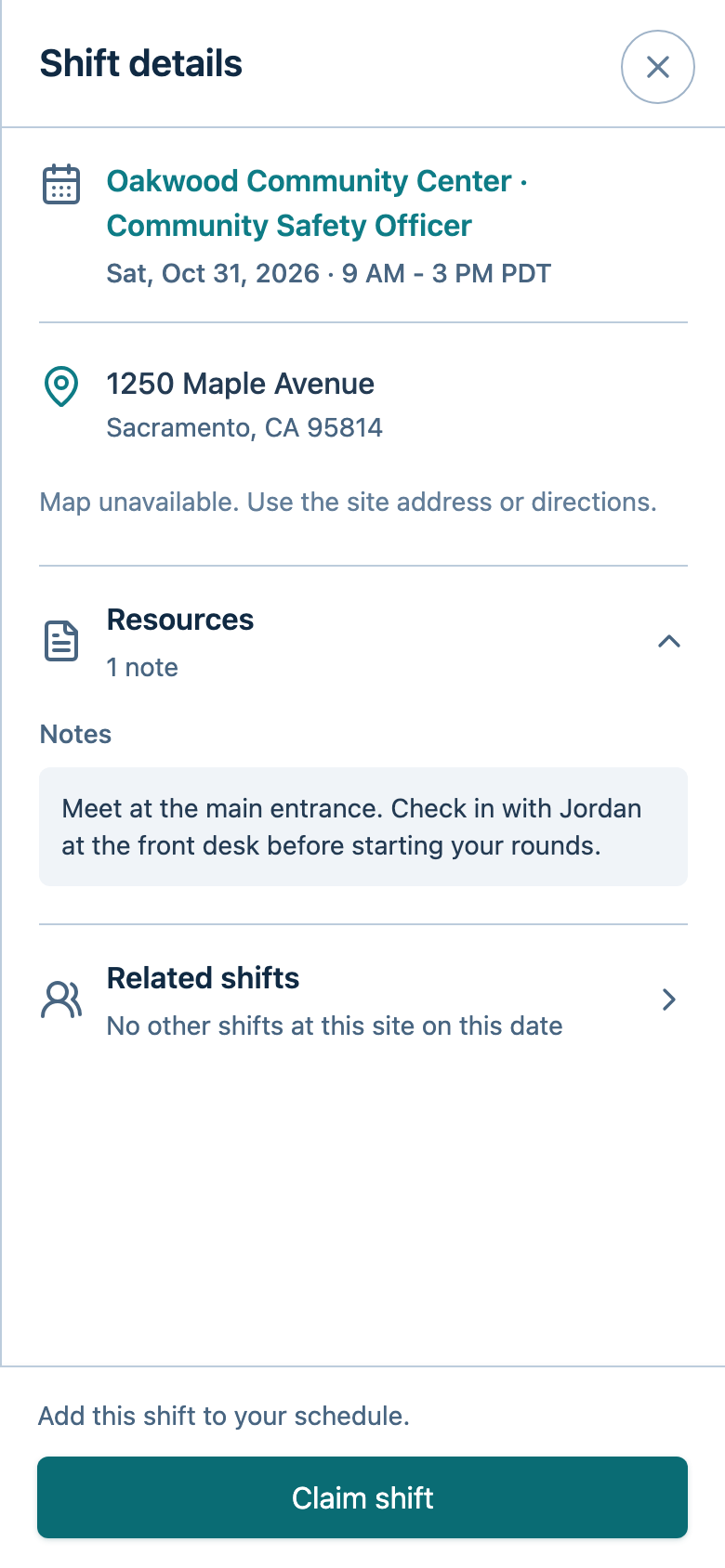
- Select an open shift.
- Review its time, location, and any instructions or documents.
- Select Claim shift.
- Wait for the app to confirm the claim.
Check that it worked
Open My shifts and check that the shift appears in your assigned schedule.
A shift with multiple spaces may still be visible under Open shifts for
other staff after you claim your space.
Troubleshooting
- The shift is unavailable: It may have started or all spaces may have been
claimed by other staff. - A schedule conflict is shown: You are already assigned to another shift
that conflicts with this one under your workspace's scheduling rules. - The claim fails or you lose connection: Reopen My shifts to check
whether it saved before trying again. Do not assume you are assigned until
the app confirms it.