
Review your assigned shifts so you know when and where to work. Confirm each
shift to acknowledge that you will attend.
Confirmation is separate from checking in when your shift starts.
Before you start
Sign in to the staff app and choose the correct team.
Review a shift
- Open Shifts.
- Select My shifts.
- Use the schedule's date controls to find the day you need.
- Select a shift to open its details.
- Review the date, start and end times, and site.
- Expand Resources if it is shown to review notes and shift documents.
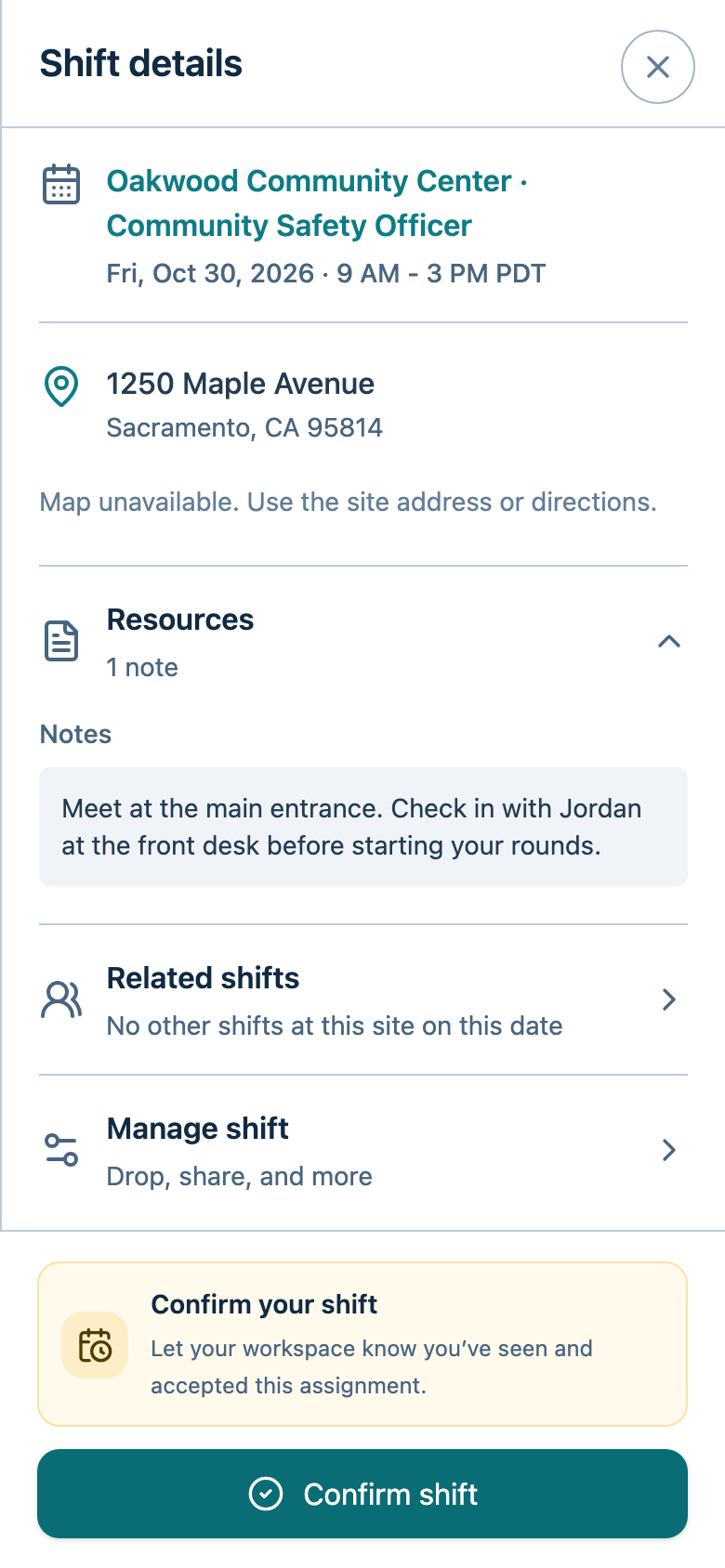
Confirm a shift
- Open your assigned shift.
- Select Confirm shift. Expand Manage shift to find it there
if it is not shown as the main action. - Wait for the app to show the shift as confirmed.
During the check-in window, an unconfirmed shift offers Check in and confirm
instead. Use that action only when you are starting
work; it records attendance as well as confirming your shift.
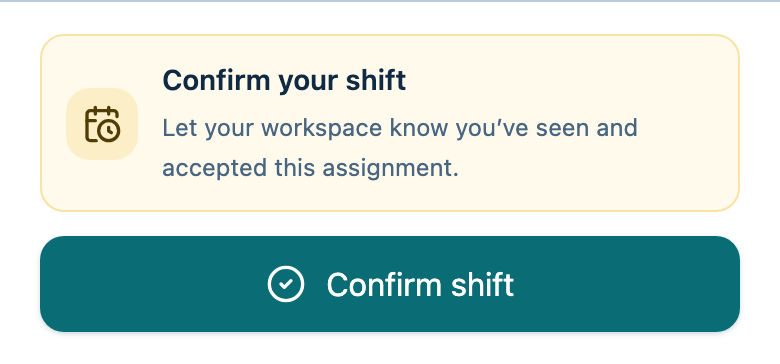
Check that it worked
The shift shows Confirmed. Check ShiftDispatch again before work for the
latest details, even if you also subscribe through a personal calendar.
Troubleshooting
- No shifts appear: Check the selected team and date range. Ask your manager
if an expected shift is missing. - No confirmation action appears: Check whether the shift already shows
Confirmed or offers Check in and confirm instead. - Confirmation fails: Reconnect, reopen the shift, and check its status
before trying again.