
Record when you start and finish work with Check in and Check out. These
actions are separate from confirming a future shift.
Before you start
- Sign in to the correct team and open your assigned shift.
- Keep an active internet connection. Offline attendance actions are not queued.
- Allow location access when requested.
Check in
- Open your current assigned shift from Shifts or My Work.
- Select Check in when you are starting work. If the shift also needs
confirmation, the action may say Check in and confirm. - Allow location access if prompted.
- Wait for the app to confirm that you are checked in.
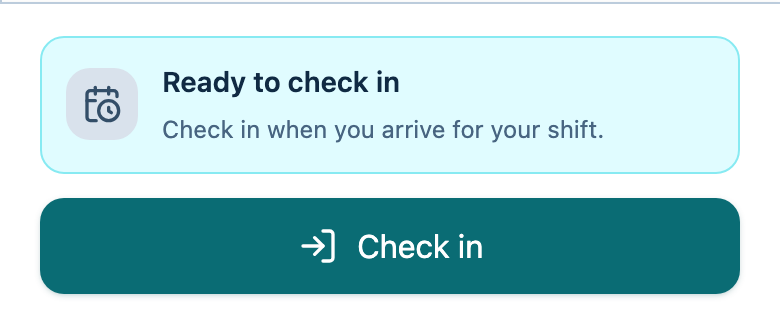
Check in during the check-in window shown in the app.
If it is too early, follow the timing shown in the app.
Check out
- Open the shift you checked in to.
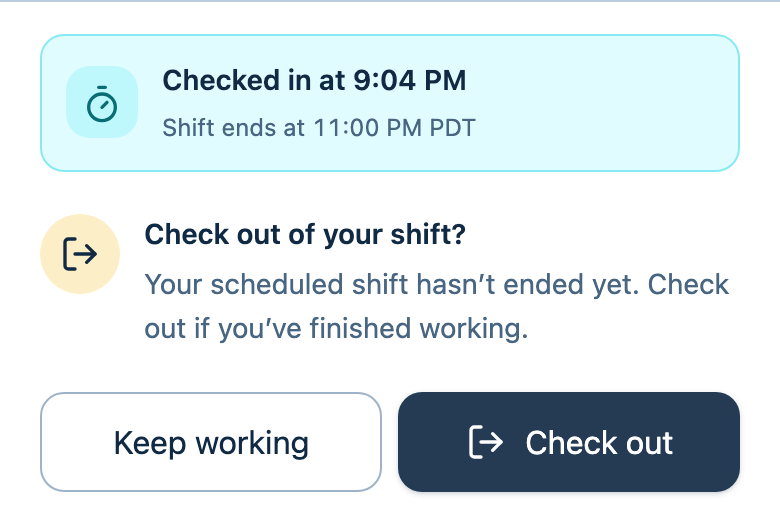
- Select Check out when you finish work.
- Review the confirmation. Select Keep working if you are not ready.
- Select Check out in the confirmation to finish.
- Allow location access if requested and wait for the saved result.
Check that it worked
The app shows a saved check-in or checkout state and its recorded time. Wait for
that confirmation before leaving the screen. A location warning, loading
indicator, or failed request does not mean attendance was saved.
Troubleshooting
- No check-in action appears: Check that you opened your assigned shift
and that you have not already checked in. Follow any timing or error message
shown in the app. - Location cannot be verified: Check device location permissions, follow
the explanation shown, and retry. Use Check in anyway or Check out anyway
when offered to save attendance as location unverified. - You are still checked in to another shift: Open that shift and check out
before checking in to the next one. - You lose connection or a save is uncertain: Reconnect and reopen the shift
to check the saved status. Follow any retry instructions shown in the app. - You missed a check-in or checkout: Tell your manager what happened.