
Drop an assigned shift to remove yourself and make the space available for
others to claim. A successful drop removes you immediately; it does not wait for another staff member to claim the space.
Before you start
Sign in and choose the correct team. Drop your shift before the cutoff shown
in the app. Started shifts cannot be dropped.
Drop a shift
- Open Shifts and select My shifts.
- Open the shift you cannot work.
- Expand Manage shift if it is shown.
- Select Drop shift.
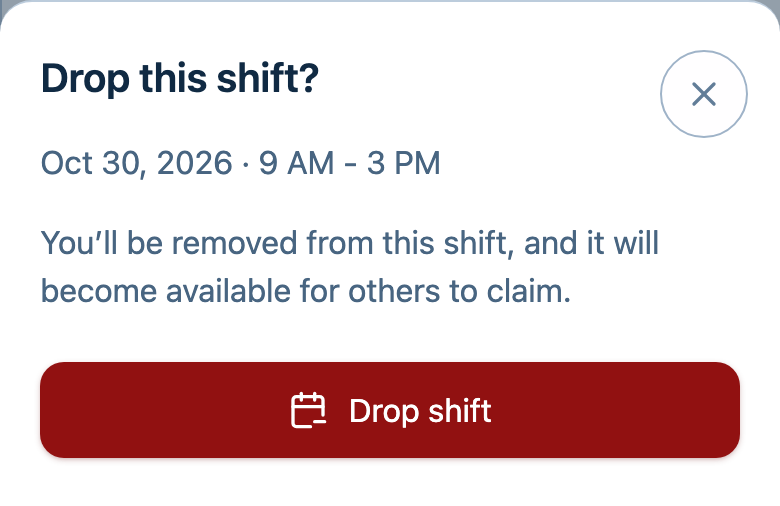
- Review the date and time in the confirmation.
- Select Drop shift again to confirm.
- Wait for the app to finish saving.
Check that it worked
Return to My shifts and check that the shift is no longer assigned to you.
It may now appear under Open shifts. Until the drop succeeds, you remain
assigned to the shift.
Troubleshooting
- Drop shift is unavailable: Read the explanation shown in the app. The
cutoff may have passed, or the shift may have started. - You need to change a shift after the cutoff: Contact your manager for
help with your assignment. - The save fails or your connection drops: Reopen My shifts to check
your assignment before trying again or assuming you have been removed.