
Workspace owners and admins can remove every shift currently visible for one
day. Your schedule filters determine which shifts are included.
Before you start
- Open the workspace schedule as an owner or admin.
- Check the selected date and active filters carefully. Shifts hidden by a
filter are not removed. - Make sure no more than 200 draft or published shifts are visible for the day.
Draft and published shifts are handled differently:
- Draft shifts are permanently deleted.
- Published shifts are cancelled, and assigned staff may receive cancellation
notifications.
Remove the visible shifts
- Open Schedule and go to the day you want to clear.
- Select Day view, then adjust the schedule filters until only the shifts
you want to remove are visible. - Open the three-dot Actions for [date] menu beside the day's summary.
- Select Remove visible shifts…. The number beside the action shows how
many visible shifts will be included.
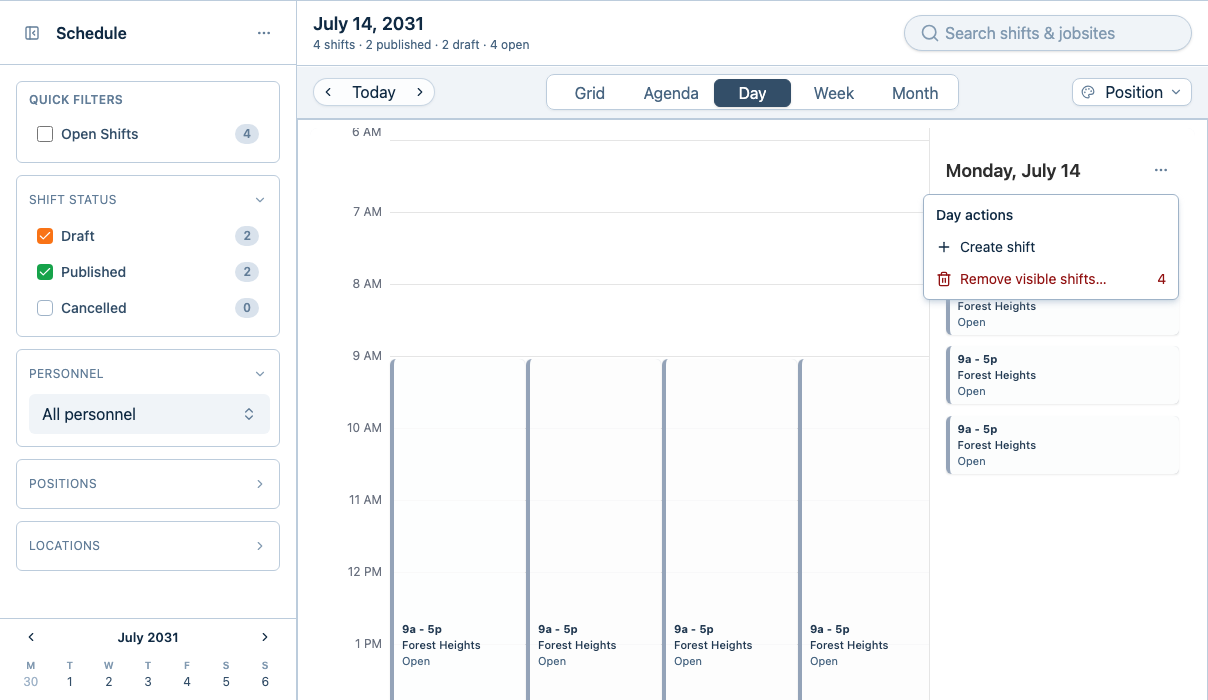
- In the confirmation dialog, verify the date and the separate counts for
Draft shifts and Published shifts.
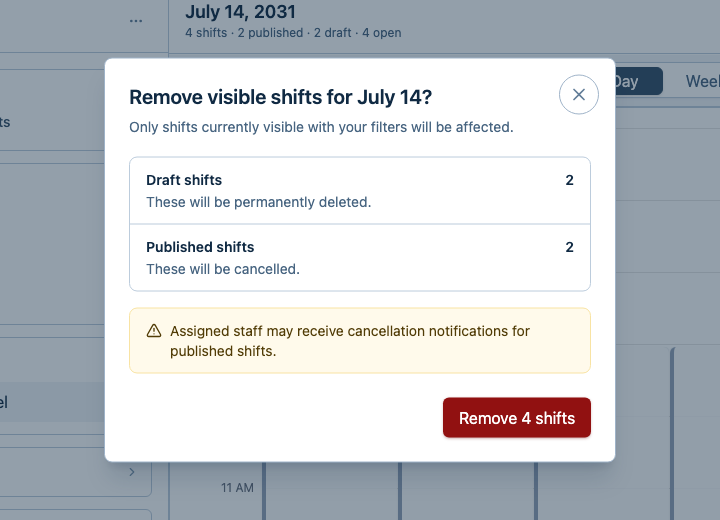
- Select Remove [number] shifts to confirm.
Check that it worked
The dialog closes and a confirmation message reports how many draft shifts
were deleted and how many published shifts were cancelled. The removed shifts
no longer appear on the schedule.
Troubleshooting
- The action is missing: Confirm that you are a workspace owner or admin
and that at least one draft or published shift is visible for the day. - The action is disabled: More than 200 shifts are visible. Narrow the
schedule filters, then open the day actions again. - The schedule changed message appears: Close the dialog, review the
refreshed schedule, and reopen Remove visible shifts…. - The count is not what you expected: Close the dialog and recheck the date
and active filters before continuing.